
Google Classroom is the official learning platform used by the University of Digital and AI Management (UniDAIM) to deliver learning materials, assignments, grading, and academic communication.
Whether you are beginning your first module or preparing to submit an assignment, understanding how to use the platform will help you enjoy a smooth and productive learning experience.
This guide explains the key features of Google Classroom and how to use them throughout your studies at UniDAIM.
Understanding Your Program Layout
Each academic program at UniDAIM is organized into modules within Google Classroom. Every module contains the resources and activities needed to complete that part of your program.
A module includes:
- Learning Materials
- Assessment (s)
- Project
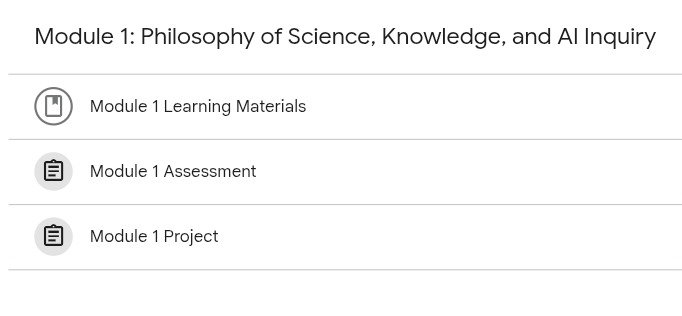
Modules are arranged in a logical sequence, allowing you to progress step by step through your studies.
How to Navigate Google Classroom
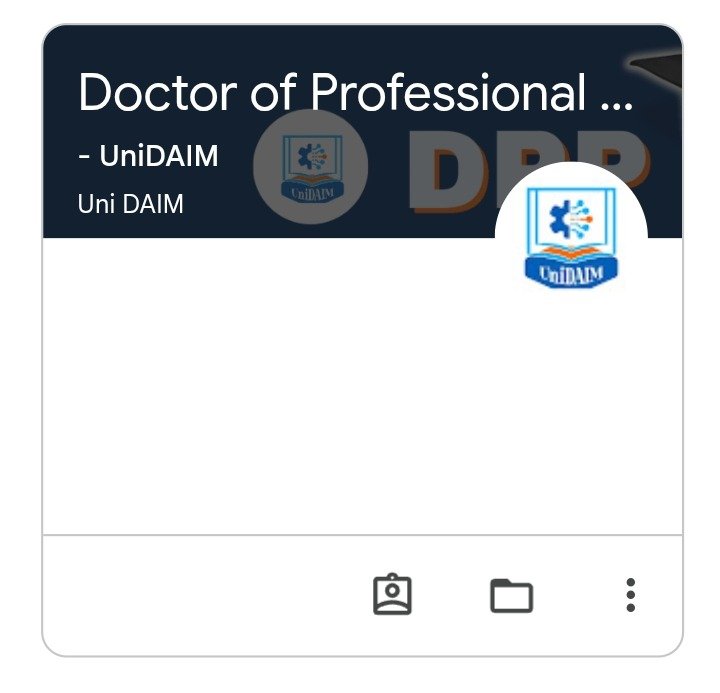
After signing in to your Google account and opening Google Classroom, you will see your enrolled class(es) on the home screen.
Inside each classroom, you will find:
- Stream – Announcements and updates from your supervisor and classmates.
- Classwork – Your modules, learning materials, and assignments,
- People – Information about your academic supervisor(s) and classmates.
- Grades – Your assignment scores.
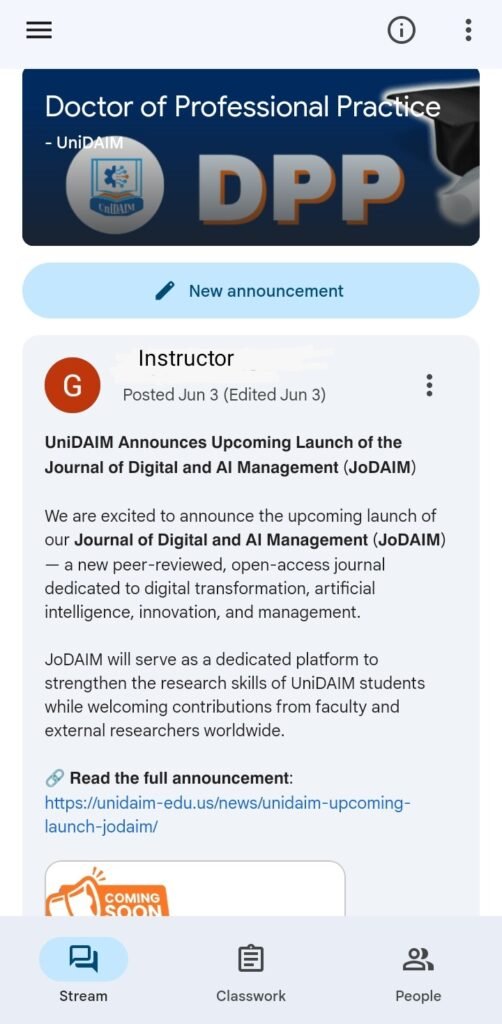
Most of your learning activities will take place within the Classwork section.
How to Complete a Module
UniDAIM follows a self-paced, module-based learning model. To complete a module:
- Log in to Google Classroom.
- Select your program.
- Click the Classwork tab.
- Take the modules serially, starting from Module 0.
- Go through the learning materials
- Submit the module assessment(s)
- Submit the module project
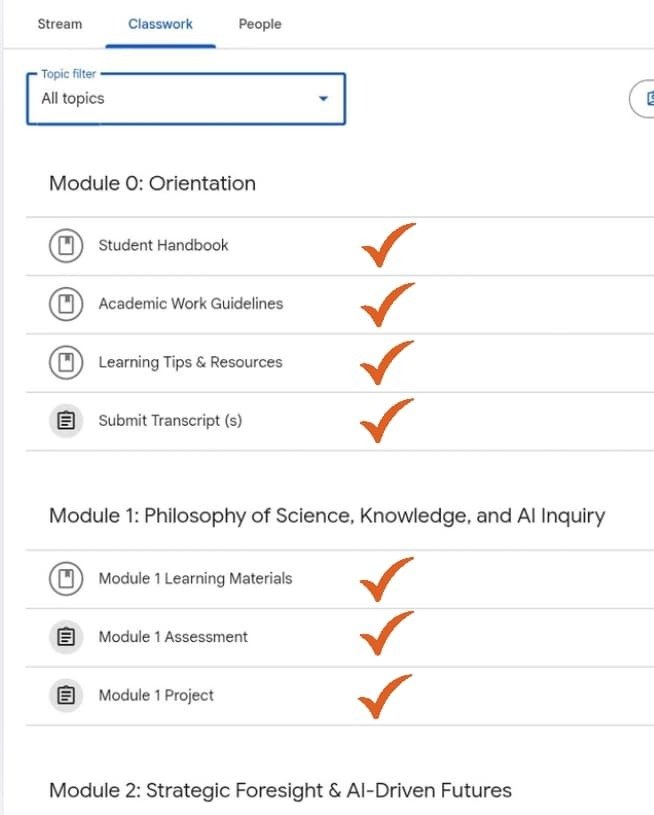
Students are required to take the modules in sequence, as each module builds upon the knowledge gained in the previous one.
How to Access Learning Materials
Each module includes learning resources that can be viewed directly online or downloaded for offline study.
Depending on the module, materials may include:
- PDF documents
- Google Docs
- Website link
- Presentation slides
- Recorded video lectures
- Additional reference materials
To download or read a file, simply click on the material under Module Learning Materials or Assessments.
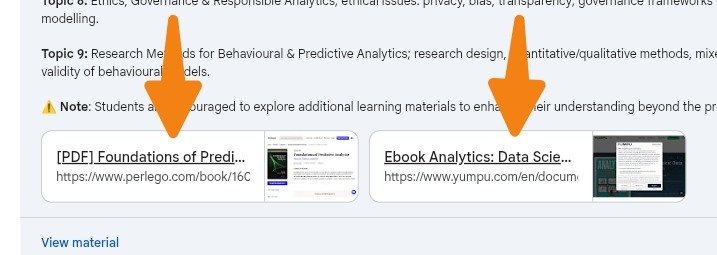
Note: Students are encouraged to explore additional learning materials to enhance their understanding beyond the provided resources.
How to Submit an Assignment
An assignment at UniDAIM may be a module assessment or a module project.
When you are ready to submit your work:
- Open your course in Google Classroom.
- Navigate to the Classwork section.
- View/open the module assessment/project
- Click Add or Create if you need to upload a file. (When using a mobile phone, click Add Work)
- Select and upload your completed assignment.
- Review your submission.
- Click Turn In to submit your work.
Additional resources (YouTube Videos):
How to Track Your Learning Progress
Students can monitor their academic progress by reviewing completed modules and submitted assignments within Google Classroom.
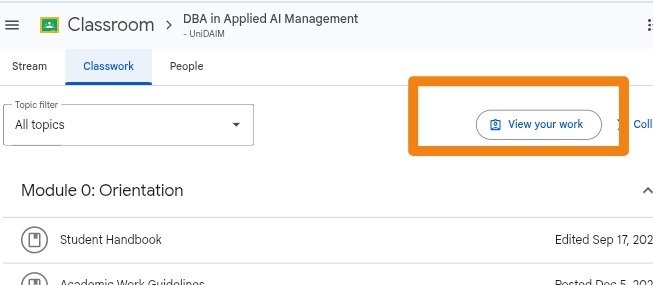
To Ned to navigate to the classroom section and click on View your work on desktop.
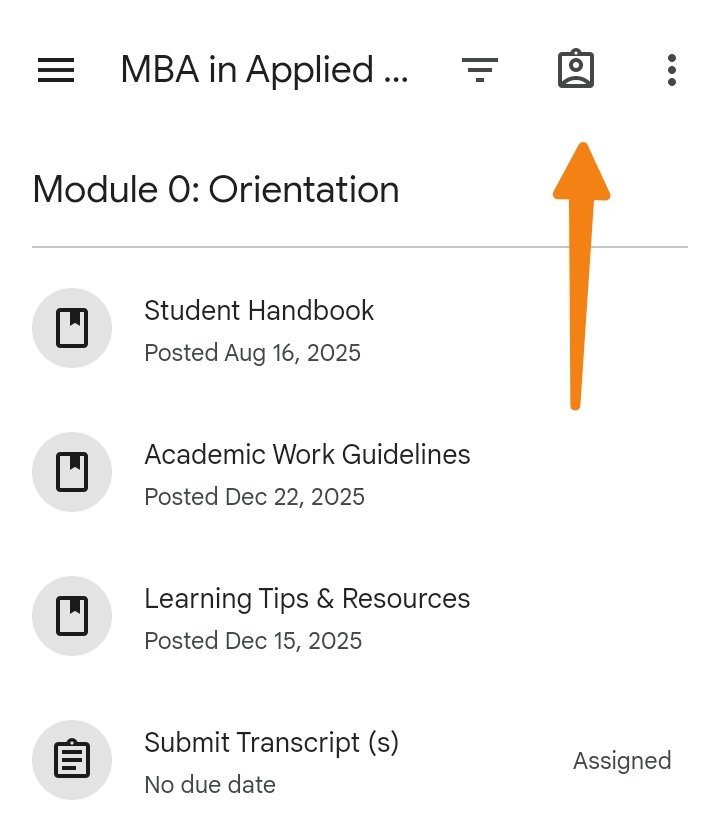
When using a mobile phone, tap the profile icon at the top of the Classroom section.
Watch this YouTube video to learn more.
How Your Progress Is Evaluated
Student progress at UniDAIM is evaluated primarily through successful completion of module assessments and projects.
Academic supervisors review submitted work based on the learning outcomes of each module. Feedback may be provided to help students improve their understanding before progressing to subsequent modules.
Students should ensure that all required modules and assessments are completed in accordance with their program requirements.
How to Access Google Classroom on Mobile Phone
Google Classroom can be accessed from both Android and iOS devices.
To study using your mobile phone:
- Install the Google Classroom app from your device’s app store.
- Sign in using your assigned Google account.
- Select your UniDAIM classroom.
- Open the Classwork section to access modules, assignments, and learning materials.
A stable internet connection is recommended when streaming recorded lectures or uploading assignments.
Need Addition Support?
If you have questions about a module, assignment, or course material, you can ask within Google Classroom or contact your academic supervisor via email. Your supervisor is available to provide academic guidance and clarification throughout your learning journey.
SHARE